Unleashing the Power of PWAs: A Complete Guide and Hands-On Lab for manifest.json and sw.js
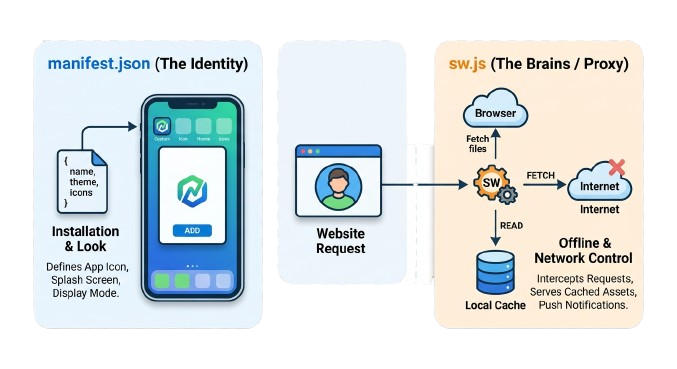
When you visit a website on your phone, you usually view it inside a browser like Chrome or Safari. But modern web development allows us to create Progressive Web Apps (PWAs)—websites that can be installed on a device, work offline, and look exactly like a native app you downloaded from an app store.
To pull this off, a website needs two essential background files: manifest.json and sw.js.
This comprehensive guide strips away the over-complicated jargon, breaks down how these files work, and finishes with a hands-on coding lab so you can build your very first offline-ready web app from scratch.
Part 1: Architectural Overview
If manifest.json is the look and identity of your app, sw.js is the brain that manages its performance and offline capabilities.
1. manifest.json (The Identity File)
The manifest.json (sometimes named site.webmanifest) is a static metadata file. It tells the browser how your app should look and behave when installed on a user’s device. Think of it as the app’s resume for the operating system.
- Installability: It enables the “Add to Home Screen” prompt in browsers.
- Visual Customization: It defines splash screens, theme colors, and icon sets.
- Display Modes: It dictates whether the app opens in a standalone window (hiding the browser URL bar) or full screen.
2. sw.js (The Service Worker)
The sw.js file is a JavaScript file that runs in the background, completely separate from your main web page. It acts as a client-side network proxy—a middleman sitting right between your website and the internet.
- Offline Functionality: It intercepts network requests. If the user is offline, it serves cached assets (HTML, CSS, JS, images) instead of failing.
- Caching Strategies: Developers can write custom logic to decide when to pull from the network versus when to pull from the local cache.
- Push Notifications: It handles background push messages from a server, even when the web app isn’t actively open.
Having these files in your root directory isn’t enough; your main web application needs to explicitly invite them to the party.
Step 1: Link the Manifest
In the <head> of your main HTML file, point to your manifest configuration:
<link rel="manifest" href="/manifest.json">
Step 2: Register the Service Worker
At the bottom of your main client-side JavaScript file, check if the browser supports service workers, and if so, register it:
if ('serviceWorker' in navigator) {
  window.addEventListener('load', () => {
    navigator.serviceWorker.register('/sw.js')
      .then((registration) => {
        console.log('Service Worker registered with scope:', registration.scope);
      })
      .catch((error) => {
        console.error('Service Worker registration failed:', error);
      });
  });
}
Part 3: Hands-On Lab — Building “QuickPad”
Let’s put this theory into practice. In this lab, we will build a minimal, offline-ready web app called “QuickPad”—a simple text pad that works completely without an internet connection.
Estimated Time: 30–45 minutes
Step 1: Project Setup
Create a new directory on your computer called quickpad. Inside that folder, create four empty files:
index.htmlstyles.cssmanifest.jsonsw.js
Step 2: The Core Web Interface
Open index.html and add the following structure, which includes a responsive layout, a text area, and a network status indicator:
<!DOCTYPE html>
<html lang="en">
<head>
  <meta charset="UTF-8">
  <meta name="viewport" content="width=device-width, initial-scale=1.0">
  <title>QuickPad</title>
  <link rel="stylesheet" href="styles.css">
  <link rel="manifest" href="manifest.json">
</head>
<body>

  <header>
    <h1>QuickPad</h1>
    <span id="network-status" class="online">Online</span>
  </header>

  <main>
    <textarea id="note-area" placeholder="Type your offline notes here..."></textarea>
  </main>

  <script>
    // Register the Service Worker
    if ('serviceWorker' in navigator) {
      window.addEventListener('load', () => {
        navigator.serviceWorker.register('/sw.js')
          .then(reg => console.log('Service Worker registered!', reg.scope))
          .catch(err => console.error('Service Worker registration failed:', err));
      });
    }

    // Monitor real-time network connection status
    const statusEl = document.getElementById('network-status');

    window.addEventListener('online', () => {
      statusEl.textContent = "Online";
      statusEl.className = "online";
    });

    window.addEventListener('offline', () => {
      statusEl.textContent = "Offline (Cached)";
      statusEl.className = "offline";
    });
  </script>
</body>
</html>
Next, open styles.css and add this code to give it a clean, app-like UI:
body {
  margin: 0;
  font-family: -apple-system, BlinkMacSystemFont, "Segoe UI", Roboto, sans-serif;
  display: flex;
  flex-direction: column;
  height: 100vh;
  background: #f4f4f9;
}

header {
  background: #317EFB;
  color: white;
  padding: 1rem;
  display: flex;
  justify-content: space-between;
  align-items: center;
}

h1 { margin: 0; font-size: 1.5rem; }

#network-status {
  padding: 0.2rem 0.6rem;
  border-radius: 12px;
  font-size: 0.8rem;
  font-weight: bold;
}

.online { background: #2ecc71; }
.offline { background: #e74c3c; }

main {
  flex: 1;
  padding: 1rem;
}

textarea {
  width: 100%;
  height: 100%;
  border: 1px solid #ccc;
  border-radius: 8px;
  padding: 1rem;
  box-sizing: border-box;
  font-size: 1rem;
  resize: none;
}
Step 3: Configuring the Manifest
Open manifest.json and add the application metadata. This triggers the browser’s installation options:
{
  "name": "QuickPad Notepad App",
  "short_name": "QuickPad",
  "start_url": "/index.html",
  "display": "standalone",
  "background_color": "#f4f4f9",
  "theme_color": "#317EFB",
  "icons": [
    {
      "src": "https://cdn-icons-png.flaticon.com/512/192/192429.png",
      "sizes": "192x192",
      "type": "image/png"
    },
    {
      "src": "https://cdn-icons-png.flaticon.com/512/512/512142.png",
      "sizes": "512x512",
      "type": "image/png"
    }
  ]
}
Note: For simplicity in this lab environment, we are using remote icon URLs. In a production project, you should host these icons locally within your project folder.
Step 4: Writing the Service Worker Logic
Open sw.js and add the caching lifecycle code. This script captures the initial installation to save files locally and intercepts subsequent network calls:
const CACHE_NAME = 'quickpad-v1';
const STATIC_ASSETS = [
  '/',
  '/index.html',
  '/styles.css'
];

// 'install' event - Pre-caches core UI assets
self.addEventListener('install', (event) => {
  event.waitUntil(
    caches.open(CACHE_NAME).then((cache) => {
      console.log('PWA Log: Pre-caching UI assets');
      return cache.addAll(STATIC_ASSETS);
    })
  );
});

// 'fetch' event - Intercepts requests to serve from local cache if offline
self.addEventListener('fetch', (event) => {
  event.respondWith(
    caches.match(event.request).then((cachedResponse) => {
      return cachedResponse || fetch(event.request);
    })
  );
});
Part 4: Testing & Verification
Service Workers cannot run directly off your local file directory path (file://...). They require a secure context or a local web server environment (http://localhost).
1. Launching Your Server
If you are using VS Code, install the Live Server extension. Right-click on your index.html file and select Open with Live Server. Your browser will open the app at an address like [http://127.0.0.1:5500/index.html](http://127.0.0.1:5500/index.html).
2. Checking DevTools
- Press
F12to open Developer Tools and navigate to the Application tab (Chrome/Edge) or Storage tab (Firefox). - Manifest Section: Check that your app name, theme colors, and icons parse successfully without errors.
- Service Workers Section: Verify that
/sw.jsis registered, active, and running. - Cache Storage Section: Expand this to confirm that
index.htmlandstyles.cssare stored inside thequickpad-v1cache container.
3. The Offline Test
Go to the Network tab in Developer Tools. Click the throttling dropdown or checkbox labeled Offline to simulate disconnecting from internet access. Refresh the page.
Expected Outcome: Instead of seeing a standard browser connection error or the offline dinosaur icon, your QuickPad web application will load immediately from the cache. The network status indicator in the header will dynamically flip to “Offline (Cached)”.
Lab Challenges for Extra Credit
- Challenge 1 (Cache Invalidation): Modify the text background color inside
styles.css. Refresh your offline page. Why didn’t the color change? (Hint: Look into updating theCACHE_NAMEversion string to clear out old static files). - Challenge 2 (Data Persistence): Use
localStoragewithin yourindex.htmlscript block so that any text typed into the notepad stays on the screen even after a page refresh or browser restart.