Why I Built a To-Do App With No Delete Button
We’ve all done it. You open your favorite task manager, see a long list of things you haven’t done yet, and instead of actually doing them, you hit that little trash can icon. Poof. Out of sight, out of mind.
But hiding a task isn’t the same as finishing it.
Most modern to-do lists are built with an escape hatch: the delete button. While it feels good to clear clutter, it often acts as a cognitive cheat code to avoid accountability. That got me thinking: What if an app forced you to either finish a task or consciously leave it active?
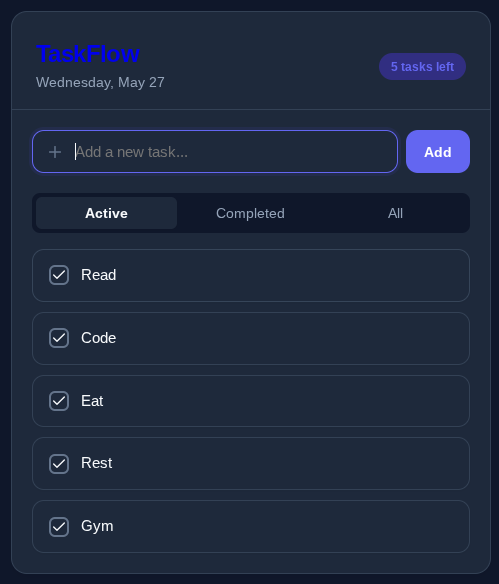
To test this idea, I built TaskFlow—a minimalist, high-performance web app designed for mobile-first productivity. And yes, it completely ditches the delete button.
Here is how it works, why I built it, and how a few simple browser APIs turned it into a powerhouse productivity tool.
The Philosophy: No Escape Hatches
In TaskFlow, your tasks live in three simple column filters: Active, Completed, and All.
Instead of searching for tiny checkboxes or trash icons, the entire task card is a massive touch target. When you tap a task in your Active view, it doesn’t wait around on a timer or show a delete prompt. It instantly swaps columns, vanishing from your immediate sight and registering itself safely under the Completed tab.
If you made a mistake? Just head over to Completed, tap it again, and it seamlessly moves right back into your active workspace.
By removing the ability to simply “delete” a problem, the app turns your workspace into an accurate mirror of your day. You either do the work, or you look at what’s left to do.
🚀 Key Features Under the Hood
While the design is minimalist, I wanted the engineering to feel premium. Here’s a breakdown of what’s happening behind the screen:
1. Live Completion Timestamps
When a task moves to the completed column, it doesn’t just get a line through it. It gets custom stamped with an elegant, localized metadata badge (e.g., Completed at 2:15 PM). This turns your completed list from a graveyard of old text into a dynamic timeline of your daily wins. If you reactive a task, the timestamp clears itself automatically.
2. Native, Zero-Config Dark Mode
I didn’t want to build a clunky theme-toggle button that a user has to click every evening. Instead, TaskFlow utilizes native CSS3 environment variables wrapped in a system media hook:
@media (prefers-color-scheme: dark) {
    /* Seamless dark mode variables activate automatically */
}
Whether your operating system flips to dark mode at sunset, or you always prefer dark interfaces, the app adapts instantly without a single line of heavy configuration logic.
3. Persistent Local Memory
Nobody wants to lose their schedule because they accidentally refreshed a tab or closed a browser window. TaskFlow features a lightweight local sync pipeline. Every task creation, column swap, and timestamp generation is parsed and serialized directly into browser storage. It’s entirely local, offline-first, and lightning fast.
4. Hourly System Reminders
To keep myself accountable without being annoying, I built a lightweight notification engine. Using native browser background intervals, the app checks your task array exactly on top of the hour. If the clock strikes a new hour cell and you still have things left to do, it sends a native OS desktop or mobile push notification keeping you on track.
Technical Stack
I purposefully built TaskFlow with zero dependencies. No bloated frameworks, no external state managers, and no massive npm packages:
- HTML5: Structured semantically to maximize layout accessibility.
- CSS3: Fluid Flexbox layouts built entirely with responsive, custom design tokens.
- ES6+ JavaScript: A clean, event-delegated DOM reconciliation engine.
- Lucide Icons: Crisp, vector iconography loaded dynamically via CDN.